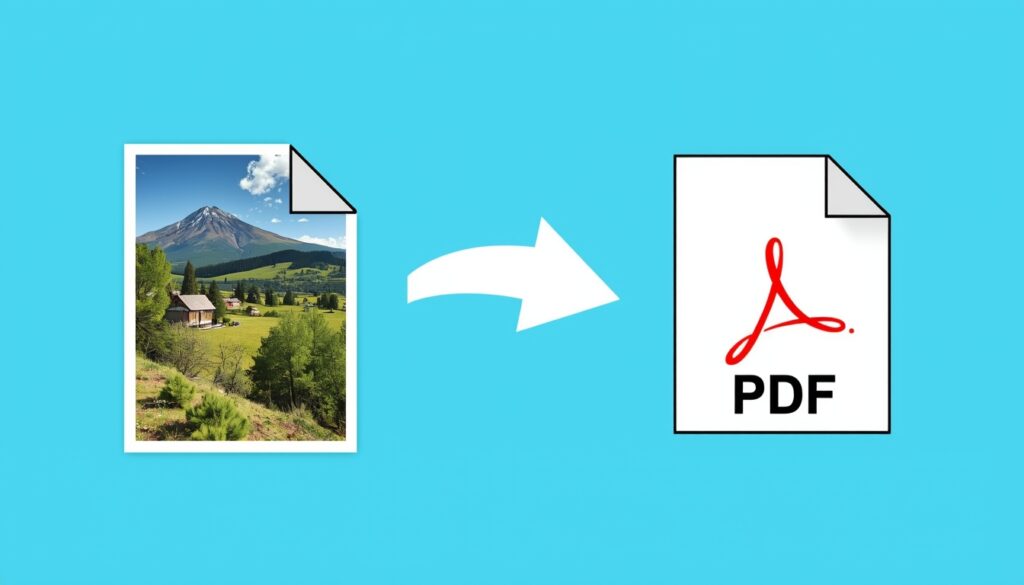
Use Advanced Document Scanner to take pictures of documents, automatically detect the document edges, crop as needed, apply filters, and export to PDF format.
Advanced Document Scanner
Camera → Detect document → Adjust crop → Apply filter → Multi-page PDF.
Advanced Document Scanner: Transform Photos into Professional PDFs
In an era where the “paperless office” is a standard rather than a goal, having a professional-grade document scanner in your pocket is essential. Whether you are capturing receipts for expense reports, archiving historical manuscripts, or digitizing a multi-page contract, our online document scanner provides the precision of a flatbed scanner with the speed of a smartphone.
Our tool doesn’t just “take a picture”—it uses advanced computer vision to automatically detect edges, rectify perspective distortions, and apply high-fidelity filters to ensure your exports are crisp, readable, and ready for professional use.
Key Features of the Advanced Scanner
1. Intelligent Automatic Edge Detection
Forget about manual cropping. Our AI-driven engine scans the camera feed in real-time to identify the boundaries of your paper against the background.

- Precision Cropping: Even if the document is placed on a cluttered desk, the auto-crop feature isolates the paper instantly.
- Perspective Correction: If you take a photo at an angle, the tool “flattens” the image, making it look as though it was scanned from directly above.
2. Professional Document Filters
A raw photo of a document often suffers from shadows, greyish backgrounds, and uneven lighting. Our document filter engine cleans the image in one click:

- B&W (High Contrast): Removes all shadows and turns the background pure white—perfect for text-heavy contracts.
- Grayscale: Preserves subtle details in photos or stamps while reducing file size.
- Magic Color: Enhances the vibrancy of colored logos and signatures while cleaning up paper grain.
3. Multi-Page PDF Export
Why send five separate images when you can send one organized file? Our photo to PDF scanner allows you to capture multiple pages in a single session.
- Reorder Pages: Drag and drop pages to fix the sequence before exporting.
- Optimized PDF Size: Our tool compresses the internal images so your PDF is small enough for email but sharp enough for printing.
How to Use the Advanced Document Scanner
Getting a perfect scan takes only a few seconds. Follow these steps for the best results:

Step 1: Capture
Position your document on a flat surface with a contrasting background (e.g., white paper on a dark table). Hold your device steady. The auto-detect feature will highlight the document edges in blue or green.
Step 2: Refine and Crop
If the automatic detection needs a tweak, use the corner handles to fine-tune the crop. Our intelligent cropping tool ensures no text is cut off while removing unnecessary background noise.
Step 3: Apply Filters
Choose the filter that best suits your needs. For standard office work, the “Document Clear” or “Black & White” filters provide the highest legibility for OCR (Optical Character Recognition) software.
Step 4: Export to PDF
Once your pages look perfect, click “Export.” Your images are converted into a high-quality standardized PDF document instantly.
Why Choose Our Web-Based Scanner?
| Feature | Our Advanced Scanner | Standard Camera App |
| Edge Detection | Automatic & AI-Powered | None (Manual) |
| Perspective | Rectified & Flattened | Distorted/Angled |
| Filters | Text-Optimized (B&W/Magic) | Standard Photo Filters |
| Output | Multi-page PDF | Single JPG Files |
| Privacy | Localized Browser Processing | Saved to Cloud/Gallery |
Frequently Asked Questions (FAQ)
Is this document scanner secure?
Yes. Your documents are processed directly in your browser. We do not upload your sensitive contracts or personal IDs to our servers for processing. Your privacy is guaranteed through client-side encryption.
Can I scan in low light?
While our document filters can brighten up a dim photo, for the best results, we recommend scanning near a window or under a desk lamp. This prevents “digital noise” and ensures the edge detection works flawlessly.
What is the maximum number of pages per PDF?
Our Advanced Document Scanner supports up to 50 pages per PDF export, making it suitable for long reports or academic chapters.
Does the PDF support text searching?
The current version exports as an “Image PDF.” To make the text searchable, you can run the exported file through any standard OCR tool.
Tips for the Perfect Scan
- Avoid Glossy Surfaces: Glare from overhead lights can “blind” the scanner. Try to tilt the document slightly to avoid direct reflections.
- Steady Hands: Let the camera focus for a second before hitting the shutter to ensure the text is sharp.
- Contrast is Key: A white document on a white tablecloth is hard for the AI to see. Use a dark background for instant automatic edge detection.
Ready to Digitize Your Files?
Experience the power of a desktop scanner in a web-based interface. Start using the Advanced Document Scanner now to turn your stacks of paper into organized, professional PDF files.
Explore Our Other Tools